All about pipelines
Pipeline Projects
A pipeline project in LOST is defined as a folder or git repository that contains pipeline definition files in json format and related python3 scripts. Additional, other files can be placed into this folder that can be accessed by the scripts of a pipeline.
Pipeline Project Examples
Pipeline project examples can be found here: LOST Out of the Box Pipelines
Repository Structure
@TODO pp_repo_structure.txt
The listing above <pp-dir-structure>
shows an example for a pipeline directory structure. Where the root
folder lost_ootb_pipes is the repo name and found is the name of
the pipeline project. found contains all files required for the
pipelines of the pipeline project. Within the project there are json
files where each represents a pipeline definition. A pipeline is
composed from different scripts (request_annos.py,
request_annos_again.py, request_images._by_lbl.py) and other
pipeline elements. Some of the scripts may require a special python
package you have written. So if you want to use this package (e.g.
my_special_python_lib), just place it also inside the pipeline
project folder. Sometimes it is also useful to place some files into the
project folder, for example a pretrained ai model that should be loaded
inside a script.
Importing a Pipeline Project into LOST
After creating a pipeline it needs to be imported into LOST. In order to do that, you need to perform the following steps:
- Log into LOST as Admin
- Go to Admin Area
- Click on the Pipeline Projects tab
- Click on Import pipeline project button
- Click on Import/ Update pipeline project from a public git repository
- Add the url of the pipeline project you like to import
- Click on Import/ Update
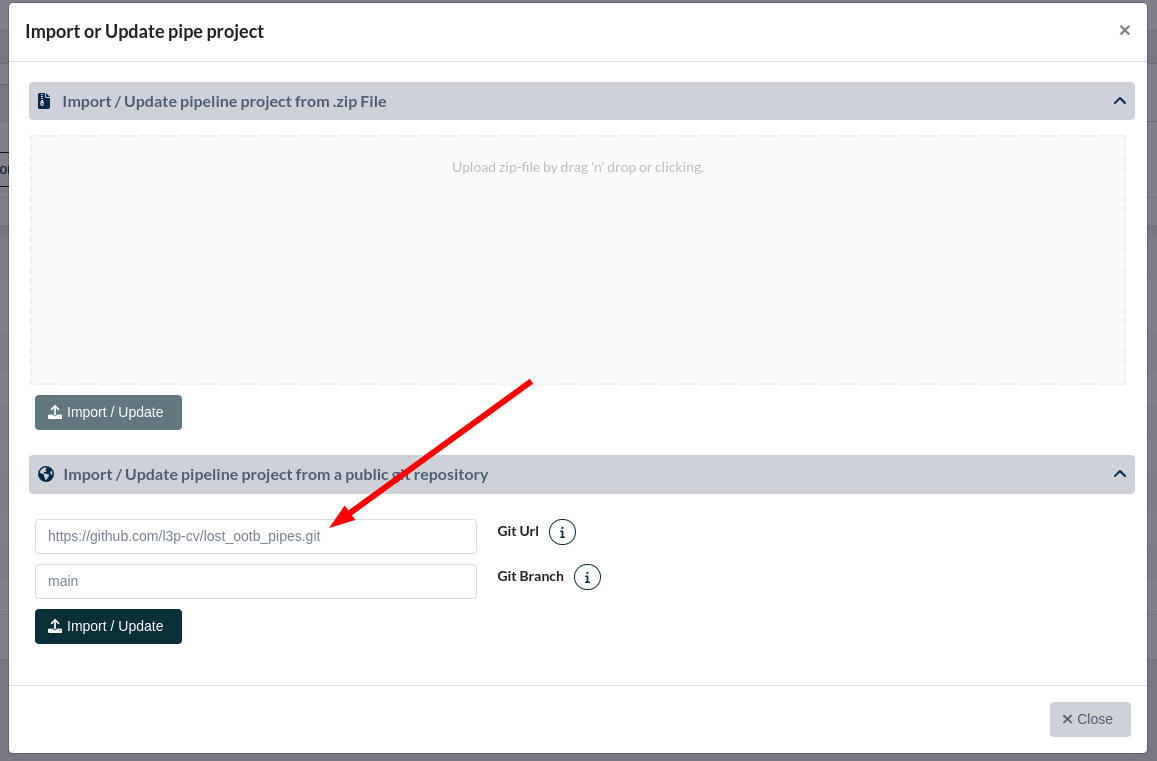
Pipeline import GUI
Updating a LOST Pipeline
If there was an update for one of your pipelines you need to update your
pipe project in LOST.In order to do this, the procedure is the same as
for importing a pipeline <aapipelines-import>
Namespacing
When importing or updating a pipeline project in LOST the following namespacing will be applied to pipelines: <name of pipeline project folder>.<name of pipeline json file>. In the same way scripts will be namespaced internally by LOST: <name of pipeline project folder>.<name of python script file>.
So in our example <pp-dir-structure> the
pipelines would be named found.mia and found.mia_request_again
....
Pipeline Definition Files
Within the pipeline definition file you define your annotation process. Such a pipeline is composed of different standard elements that are supported by LOST like datasource, script, annotTask, dataExport, visualOutput and loop. Each pipeline element is represented by a json object inside the pipeline definition.
As you can see in the example <aapipelines-example>, the pipeline itself is also defined by a json object. This
object has a description, a author, a pipe-schema-version and a
list of pipeline elements. Each element object has a peN (pipeline
element number) which is the identifier of the element itself. An
element needs also an attribute that is called peOut and contains a
list of elements where the current element is connected to.
An Example
@TODO ::: aapipelines-example .literalinclude language="json" linenos="" caption="A simple example pipeline." ../../../backend/lost/pyapi/examples/pipes/mia/anno_all_imgs.json :::
Possible Pipeline Elements
Below you will find the definition of all possible pipeline elements in LOST.
Datasource Element
{
  "peN" : "[int]",
  "peOut" : "[list of int]|[null]",
  "datasource" : {
    "type" : "rawFile"
  }
}
Datasource elements are intended to provide datasets to Script elements. To be more specific it will provide a path inside the LOST system. In most cases this will be a path to a folder with images that should be annotated. The listing above shows the definition of a Datasource element. At the current state only type rawFile is supported, which will provide a path.
Script Element
{
  "peN" : "[int]",
  "peOut" : "[list of int]|[null]",
  "script" : {
    "path": "[string]",
    "description" : "[string]"
  }
}
Script elements represent python3 scripts that are executed as part
of your pipeline. In order to define a Script you need to specify a
path to the script file relative to the
pipeline project folder <aapipelines-pipe-projects> and a short description of your script.
AnnoTask Element
{
  \"peN\" : \"[int]\",
  \"peOut\" : \"[list of int]|[null]\",
  \"annoTask\" : {
    \"type\" : \"mia|sia\",
    \"name\" : \"[string]\",
    \"instructions\" : \"[string]\",
    \"configuration\":{\"...\"}
  }
}"}
An AnnoTask represents an annotation task for a human-in-the-loop. Scripts can request annotations for specific images that will be presented in one of the annotation tools in the web gui.
Right now two types of annotation tools are available. If you set
type to sia the
single image annotation tool <annotators-sia> will be used for annotation. When choosing mia the
images will be present in the
multi image annotation tool <annotators-mia>.
An AnnoTask requires also a name and instructions for the annotator. Based on the type a specific configuration is required.
If "type" is "mia" the configuration will be the following:
{
  "type": "annoBased|imageBased",
  "showProposedLabel": "[boolean]",
  "drawAnno": "[boolean]",
  "addContext": "[float]"
}
MIA configuration:
: -
type
: - If imageBased a whole image will be presented in the clustered view.
-
If annoBased all
lost.db.model.TwoDAnnoobjects related to an image will be cropped and presented in the clustered view.
showProposedLabel
: - If true, the assigned sim_class will be interpreted as label and be used as pre-selection of the label in the MIA tool.
drawAnno
: - If true and type : annoBased the specific annotation will be drawn inside the cropped image.
addContext
: - If type : annoBased and addContext > 0.0, some amount of pixels will be added around the annotation when the annotation is cropped. The number of pixels that are add is calculated relative to the image size. So if you set addContext to 0.1, 10 percent of the image size will be added to the crop. This setting is useful to provide the annotator some more visual context during the annotation step.
If "type" is "sia" the configuration will be the following:
{
  "tools": {
          "point": "[boolean]",
          "line": "[boolean]",
          "polygon": "[boolean]",
          "bbox": "[boolean]",
          "junk": "[boolean]"
  },
  "annos":{
      "multilabels": "[boolean]",
      "actions": {
          "draw": "[boolean]",
          "label": "[boolean]",
          "edit": "[boolean]",
      },
      "minArea": "[int]",
      "maxAnnos": "[int or null]"
  },
  "img": {
      "multilabels": "[boolean]",
      "actions": {
          "label": "[boolean]",
      }
  }
}
SIA configuration:
: -
tools
: - Inside the tools object you can select which drawing tools are available and if the junk button is present in the SIA gui. You may choose either true or false for each of the tools (point, line, polygon, bbox, junk).
annos (configuration for annotations on the image)
: -
actions
: - draw is set to false a user may not draw any new annotations. This is useful if a script sent annotation proposals to SIA and the user should only correct the proposed annotations.
-
label allows to disable the possibility to assign labels to annotations. This option is useful if you wish that your annotator will only draw annotations.
-
edit inidcates wether an annotator may edit an annotation that is already present.
-
multilabels allows to assign multiple labels per annotation.
-
minArea The minimum area in pixels that an annotation may have. This constraint is only applied to annotations where an area can be defined (e.g. BBoxs, Polygons).
-
maxAnnos Maximum number of annos that are allowed per image. If null an infinite number of annotation are allowed per image.
img (configuration for the image)
: -
actions
: - label allows to disable the possibility to assign labels to the image.
- multilabels allows to assign multiple labels to the image.
DataExport
{
  "peN" : "[int]",
  "peOut" : "[list of int]|[null]",
  "dataExport" : {}
}
A DataExport is used to serve a file generated by a script in the
web gui. No special configuration is required for this pipeline element.
The file to download will be provided by a Script that is connected
to the input of the DataExport element. This Script will call
the lost.pyapi.inout.ScriptOutput.add_data_export method in order to do that.
VisualOutput
{
  "peN" : "[int]",
  "peOut" : "[list of int]|[null]",
  "visualOutput" : {}
}
A VisualOutput element can display images and html text inside the
LOST web gui. A connected Script element will provide the content to
an VisualOutput by calling
lost.pyapi.inout.ScriptOutput.add_visual_output.
Loop
{
  "peN": "[int]",
  "peOut": "[list of int]|[null]",
  "loop": {
    "maxIteration": "[int]|[null]",
    "peJumpId": "[int]"
  }
}
A Loop element can be used to build learning loops inside of a pipeline. Such a Loop models a similar behaviour to a while loop in a programming language.
The peJumpId defines the peN of another element in the pipeline where this Loop should jump to while looping. The maxIteration setting inside a loop definition can be set to a maximum amount of iterations that should be performed or to null in order to have an infinity loop.
A Script element inside a loop cycle may break a loop by calling
lost.pyapi.script.Script.break_loop.
Scripts inside a loop cycle may check if a loop was broken by
calling lost.pyapi.script.Script.loop_is_broken.